Photos is a built-in type for Pro. Each photo you upload becomes its own entry, and your page shows them as a square grid that opens full size when someone clicks one.
Steps
From your Dashboard, open Photos.
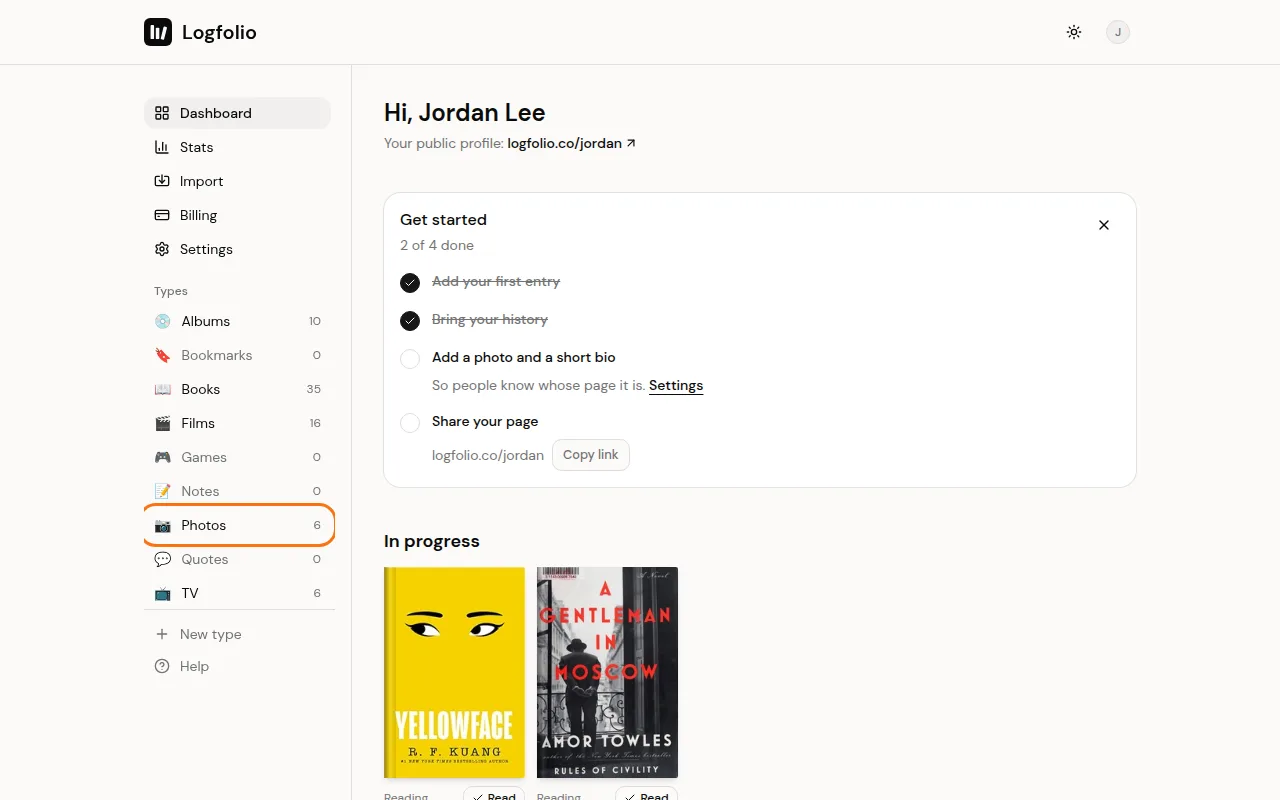
Select Add.
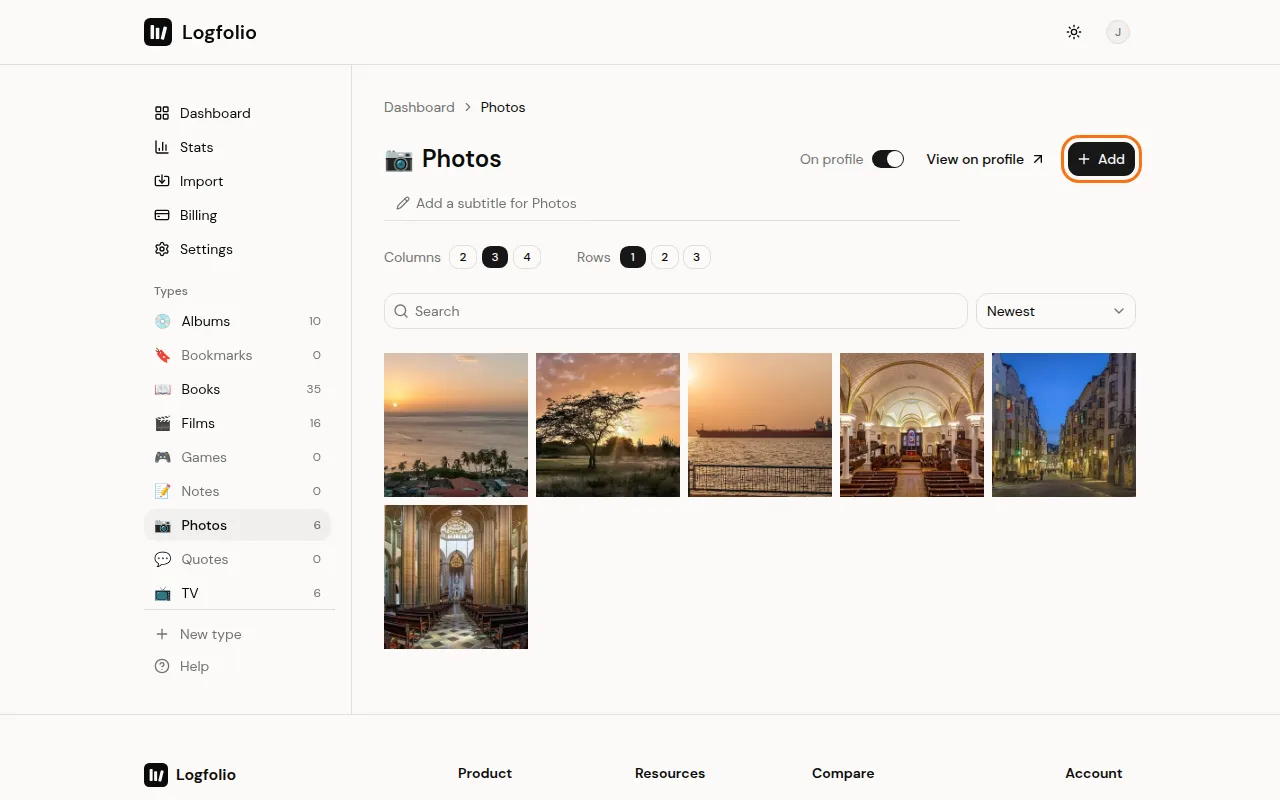
Select Choose photos or drop them here and pick one or more photos, or drag them onto the box. They upload one at a time, and the panel closes when they're all in.
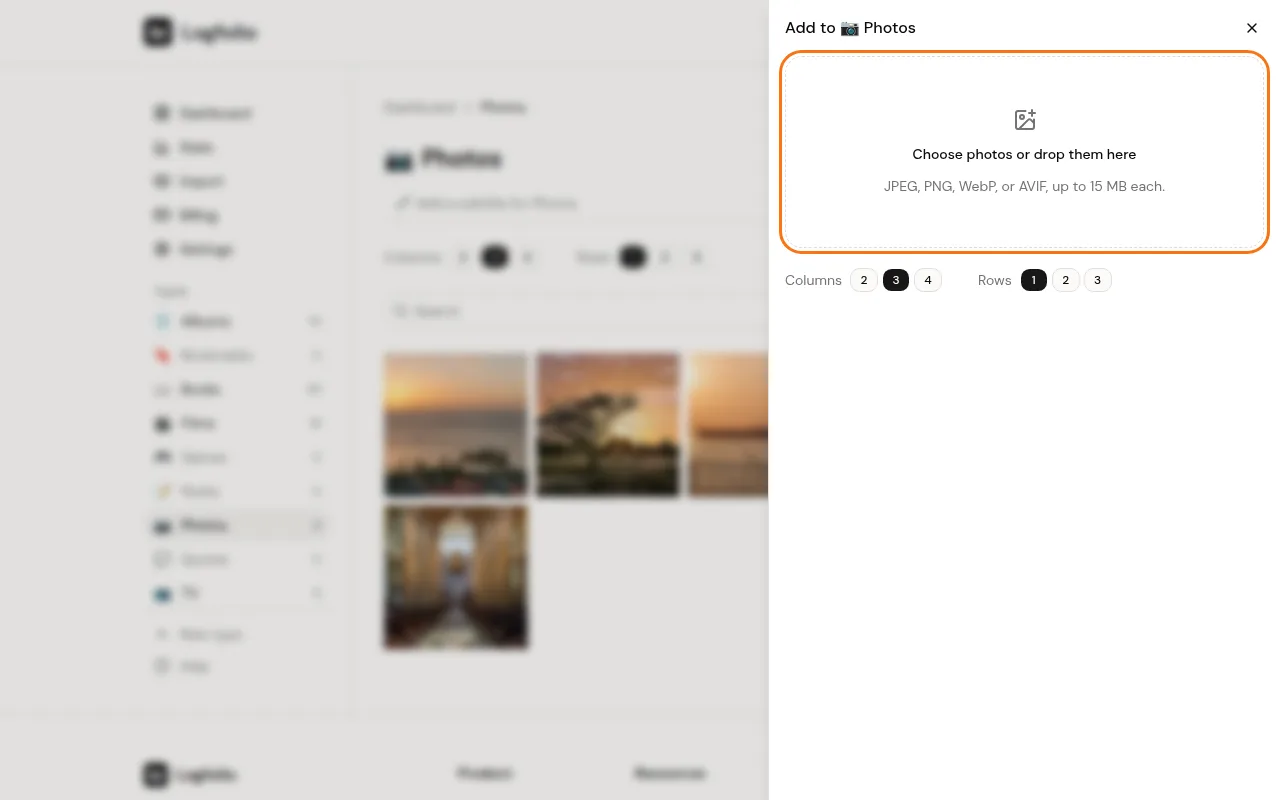
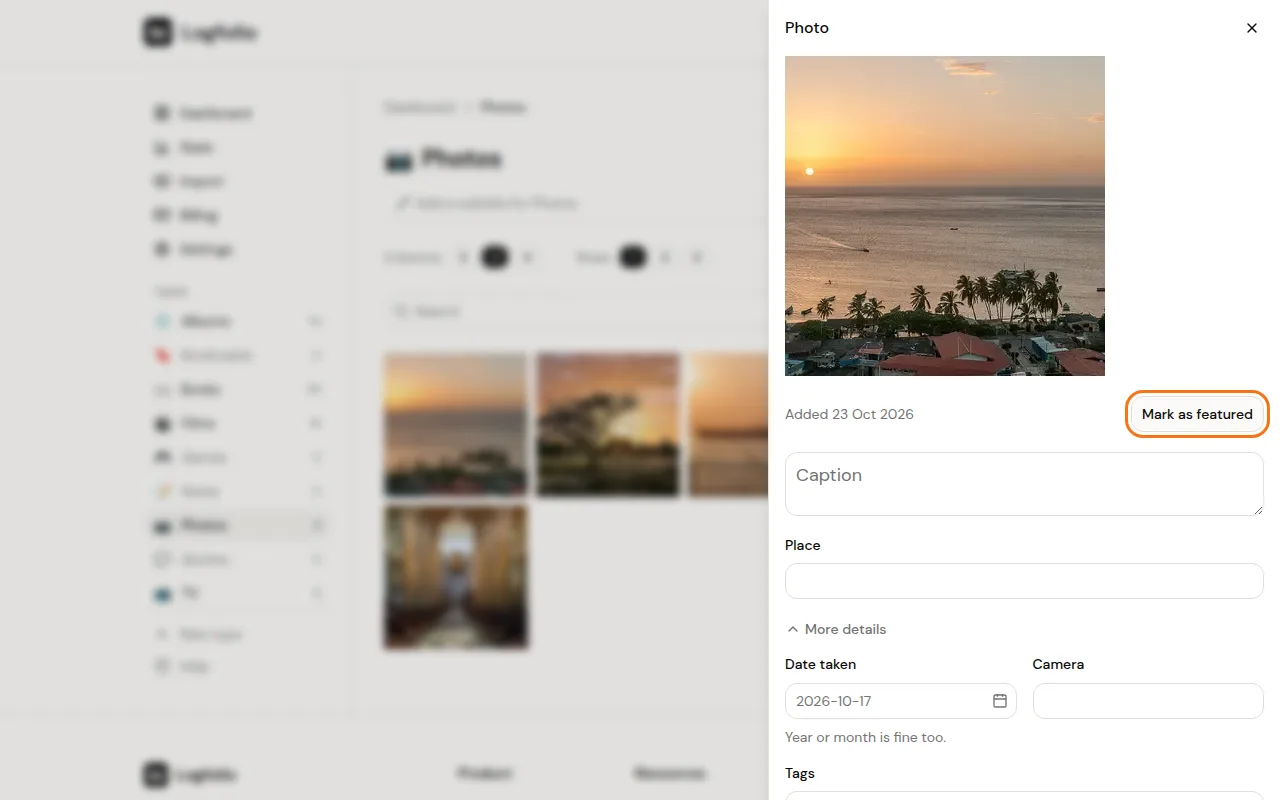
Select a photo to add its details. Type a Caption, a Place, and if you like the Date taken, Camera, and Tags. Changes save as you go.
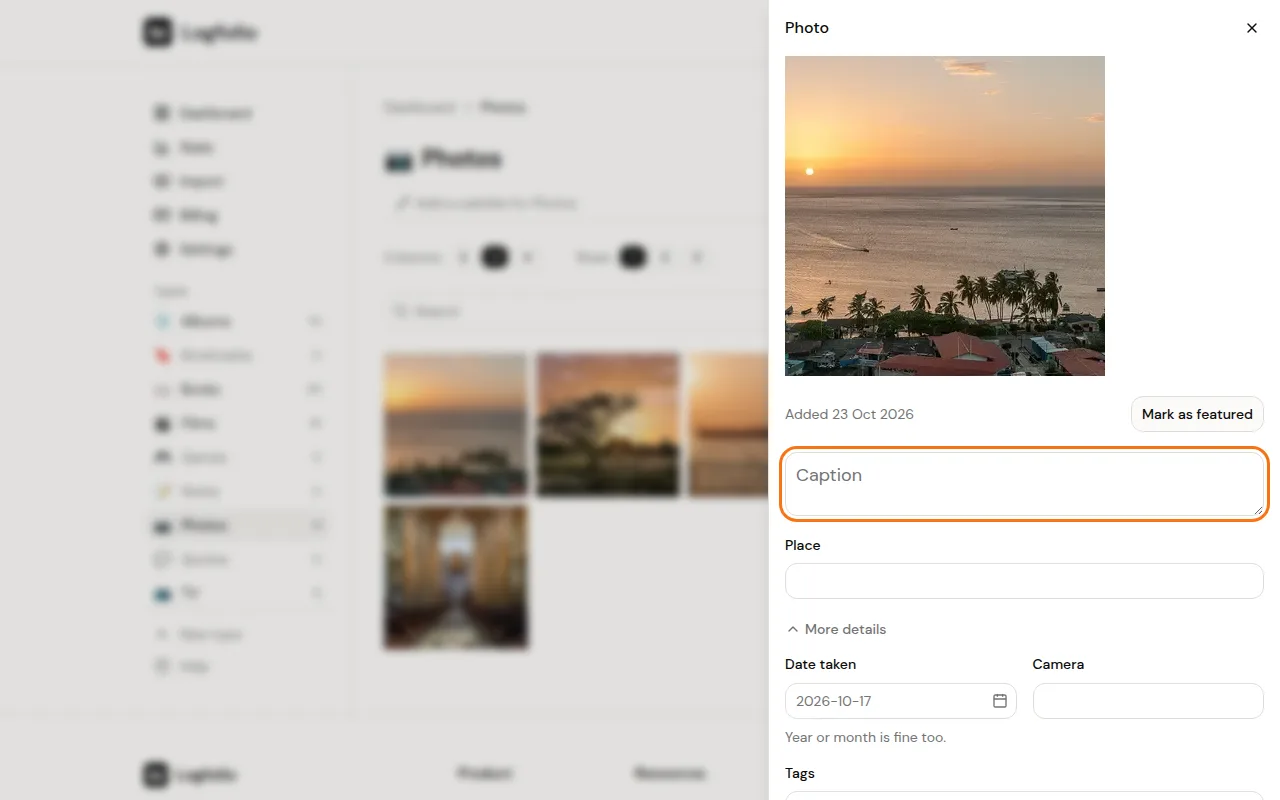
To put a photo first on your page, select Mark as featured in the same panel. It changes to Featured.
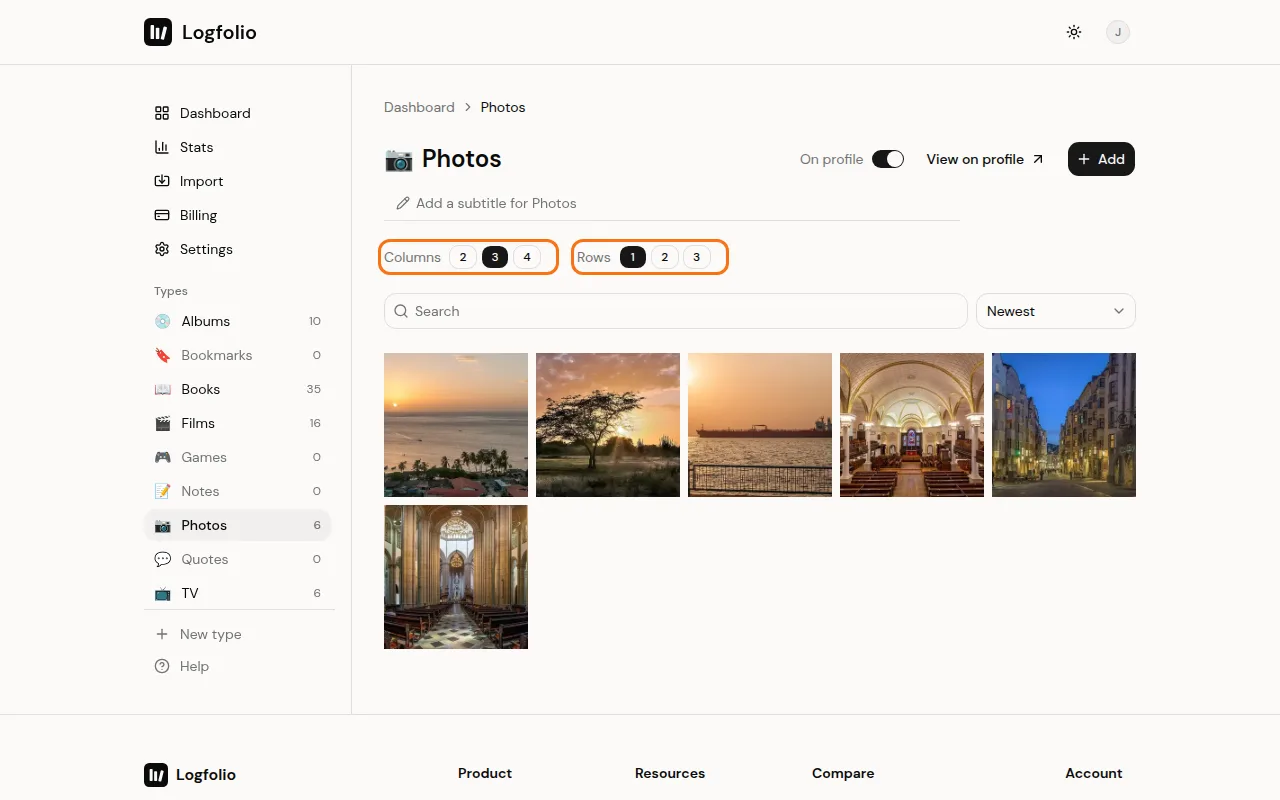
Back on the Photos page, pick Columns (2, 3, or 4) and Rows (1, 2, or 3). That sets how your Photos section looks on your profile. It saves right away.
Good to know
- Each photo can be up to 15 MB, in JPEG, PNG, WebP, or AVIF. HEIC files from iPhones don't work yet, so save them as JPEG first.
- You can store up to 500 images. That count is shared with the Image fields in types you make yourself.
- Location and other hidden photo data are removed when you upload. Logfolio keeps resized copies, not your original file, so hang on to your originals.
- Visitors see the caption, and the place, camera, and date, under each photo when they open it. Your Note stays private.
- You can feature up to five photos. Featured photos come first when the list is sorted by Newest. See Feature your favorites.
- Your profile shows columns times rows photos, with See all for the rest. Phones always show two across. The starting setting is 3 columns and 1 row.
- Tick Private on a photo to keep it off your page. See Keep things private.
- To remove one, open it and select Delete entry.
- For ideas on using Photos as a journal, read the full guide.