Connect Steam and Logfolio reads the games you've played, with your hours, so you can add them to your Games log. Syncing connected accounts is part of Pro. On Free, the Steam row shows a Pro badge and a See Pro button.
Steps
In Steam's privacy settings, set Game details to Public. Logfolio can't see a private library.
In Logfolio, open Settings → Import & export and scroll down to Connected accounts.
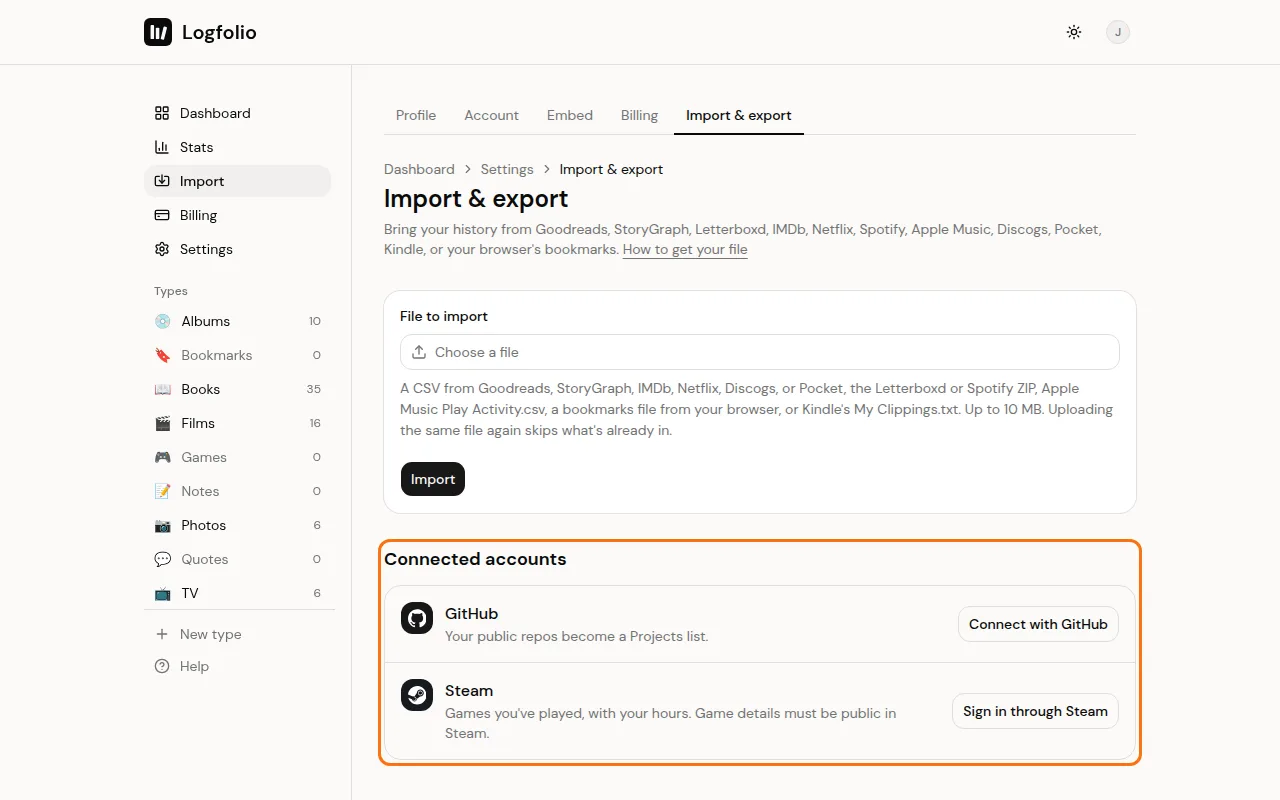
On the Steam row, click Sign in through Steam.
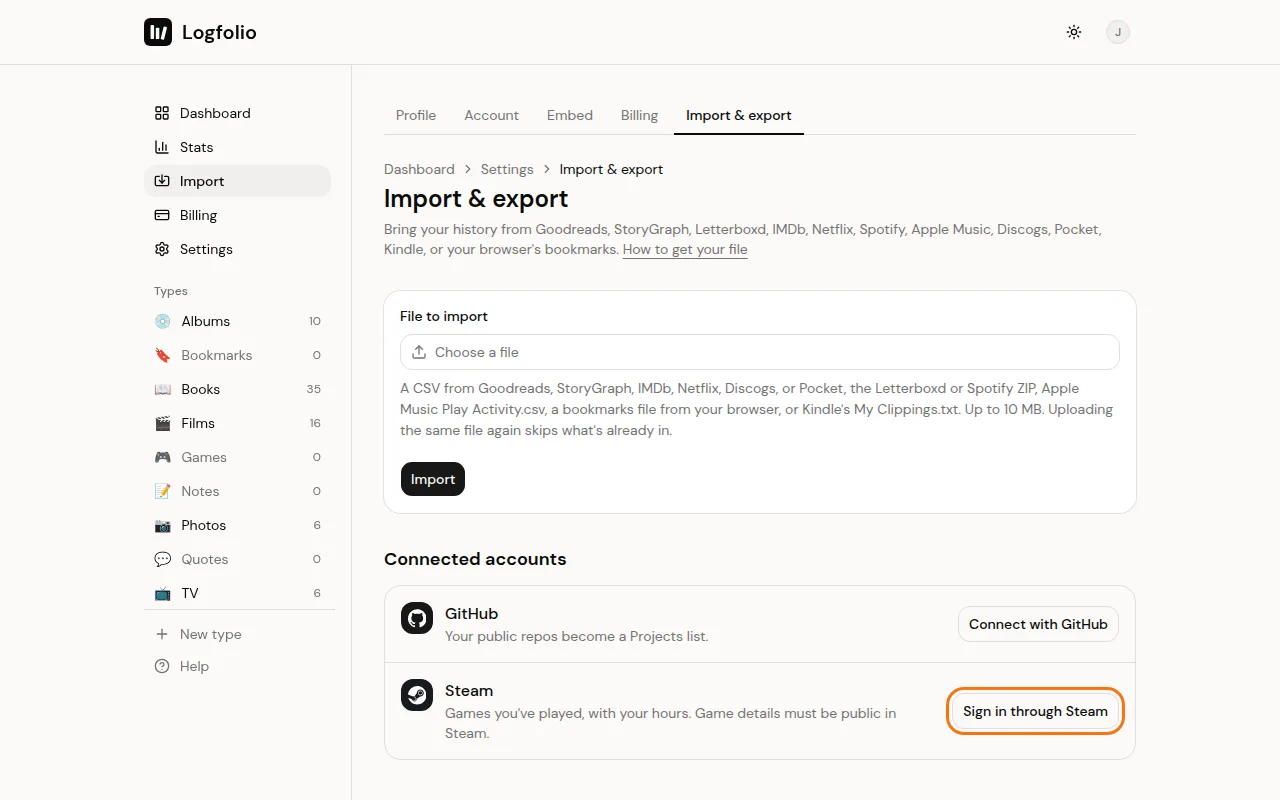
Sign in on Steam's own page. Logfolio never sees your Steam password.
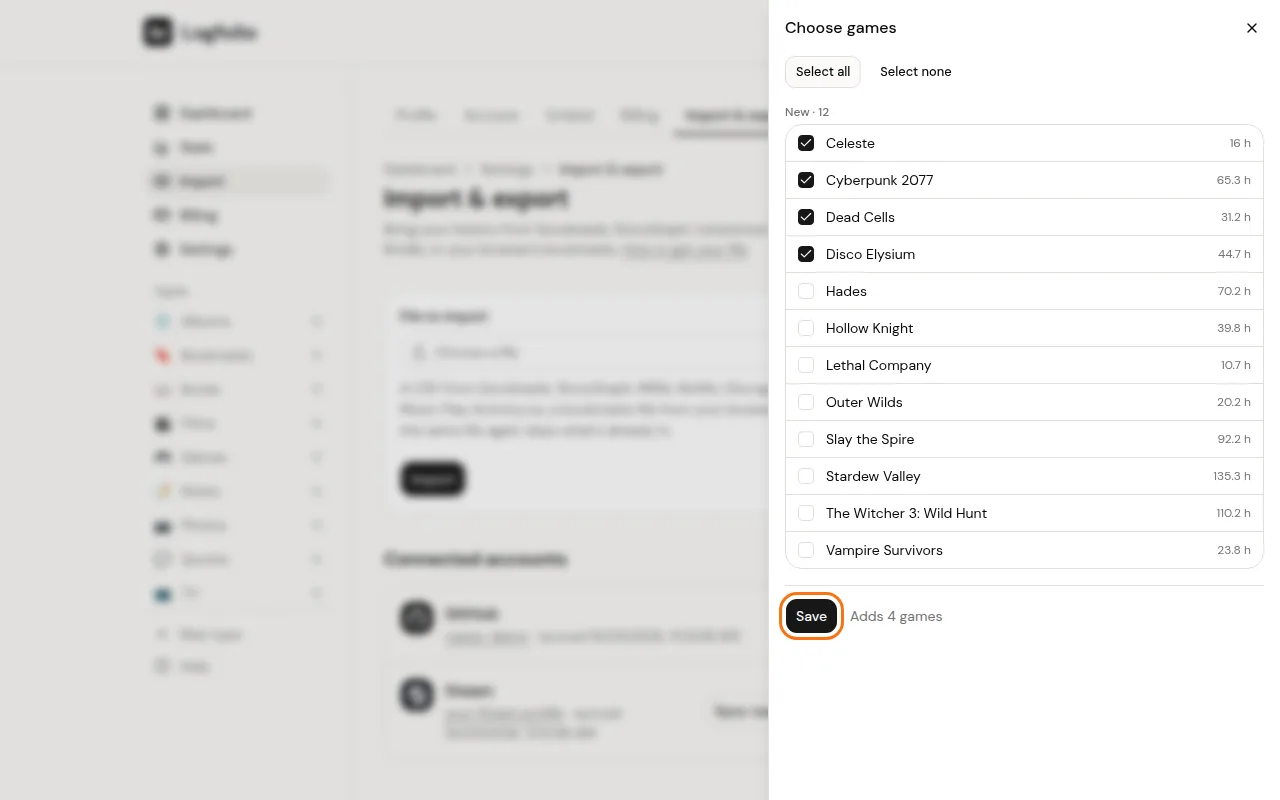
Back in Logfolio, Choose games opens. Tick the games you want in your log (or use Select all), then click Save.
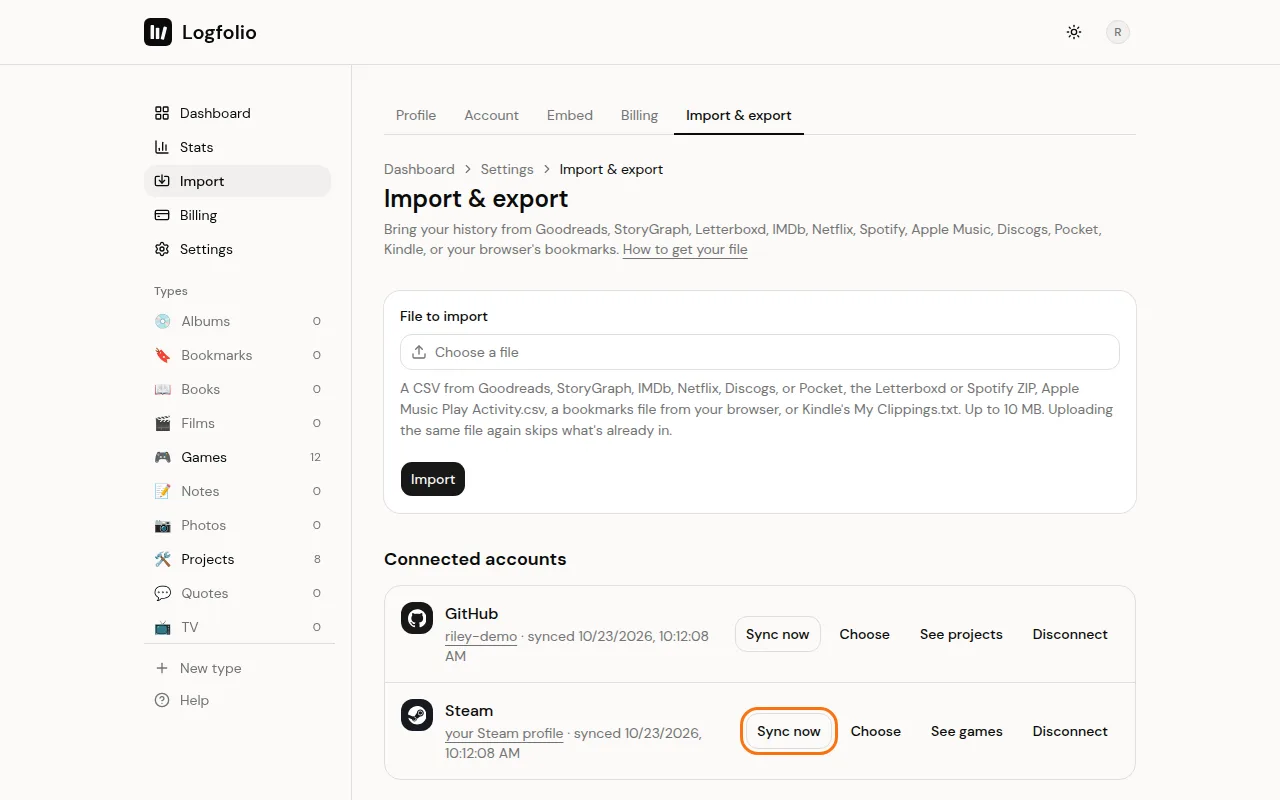
Later, click Sync now for your latest games and hours. New games wait behind a Review button (like Review 3 new) until you pick them.
What comes over
- Every game you've played, with your total hours in Hours played (rounded to a tenth of an hour).
- When you last played it, as its date.
- Games played in the last two weeks show as Playing. The rest show as Played. Each sync moves a game between the two as you pick it up or put it down, unless you set another status yourself, like Dropped.
- Platform set to PC when the entry is made. Change it and your edit sticks.
Good to know
- Games you own but never launched are left out.
- Steam only syncs when you connect or click Sync now. It doesn't sync in the background.
- A sync updates hours and dates on games in your log. Your title, rating and review stay as you set them.
- A game you typed in by hand before is matched and taken over, not added twice.
- Games you leave unticked go under Left out and stay out. Unticking a game under In your log removes it from your log when you save, after you confirm.
- Disconnect stops syncing. What's already in your log stays.
- If you see a note that your game details are private, fix step 1 and click Sync now.