You can drag your page's sections into a new order and switch some of them off. That part needs Pro. Turning the tabs on or off and writing section subtitles work on every plan, Free included.
Steps
Open your profile and select Arrange. On a phone it's the button with the up and down arrows. A panel called Profile sections opens.
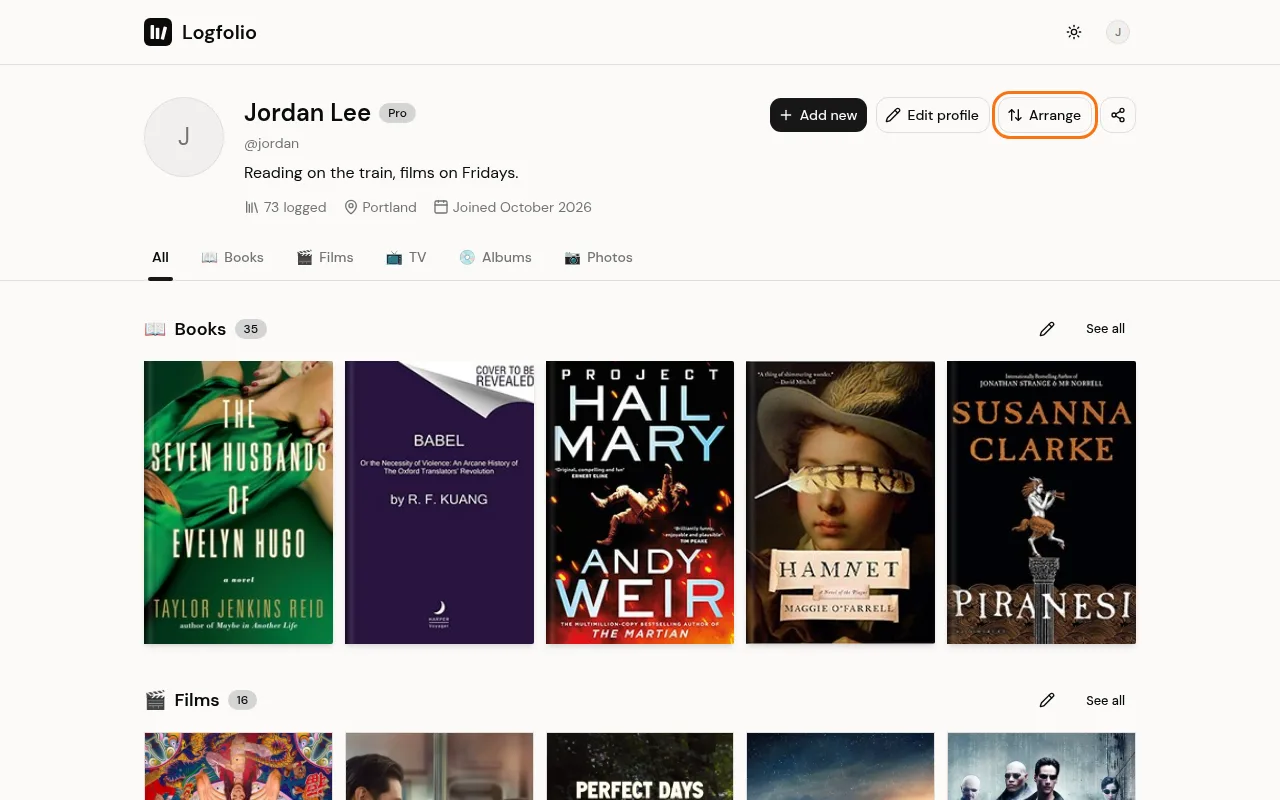
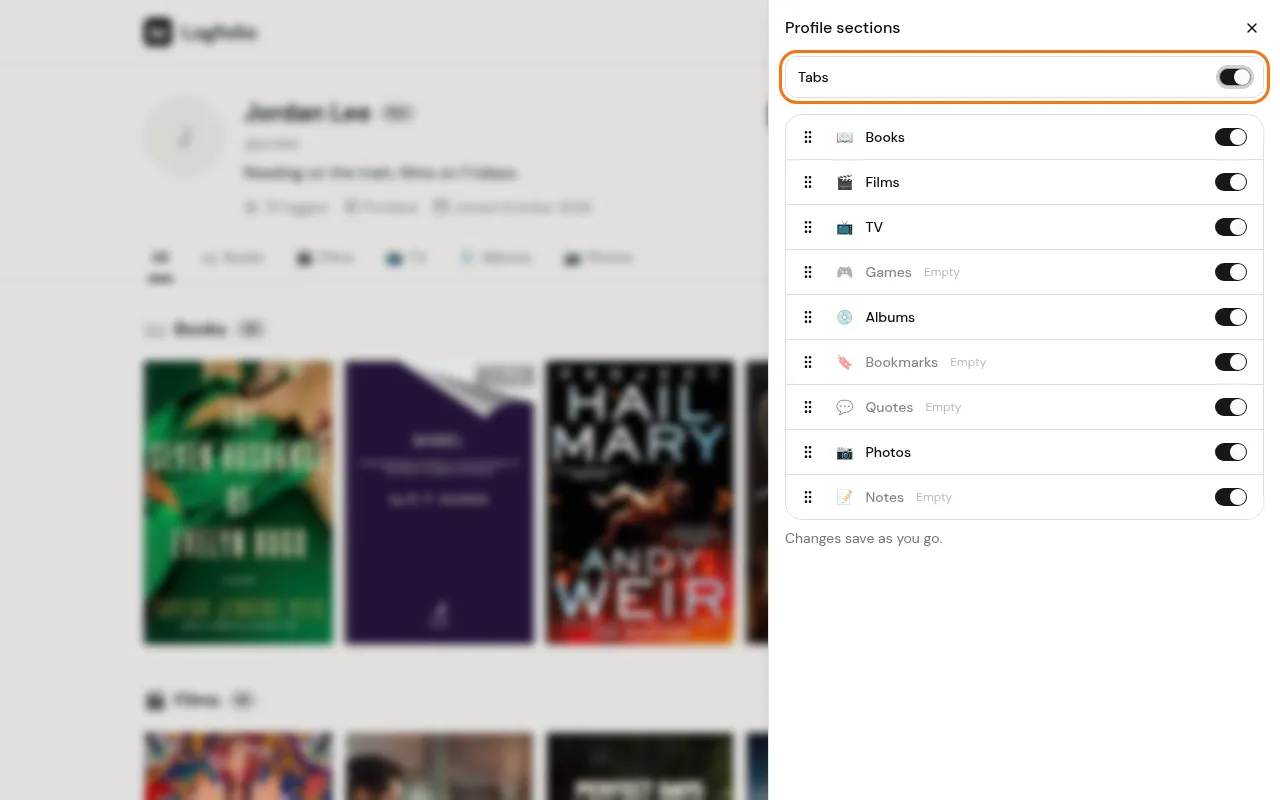
Use the Tabs switch at the top to show or hide the row of tabs (All, then each section) under your profile header.
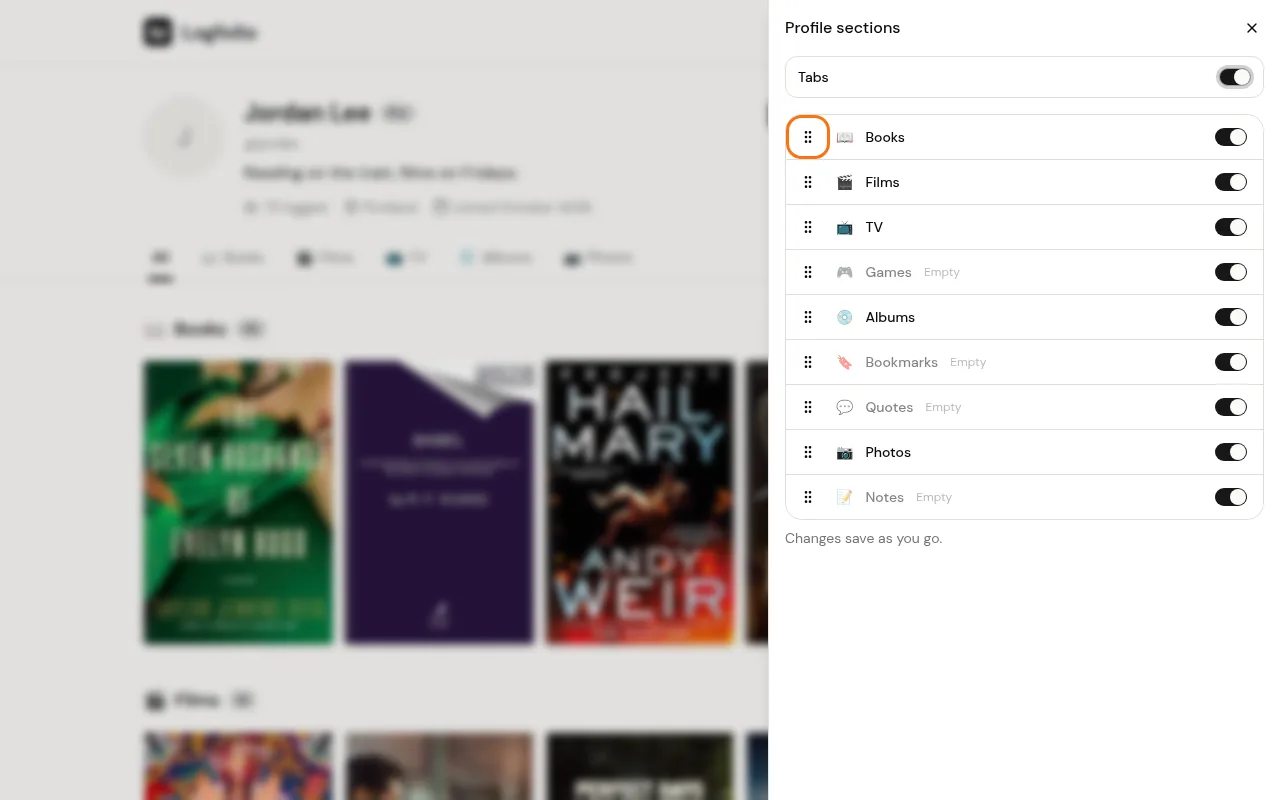
Drag a section by its handle to move it. You can also select the handle and use the up and down arrow keys.
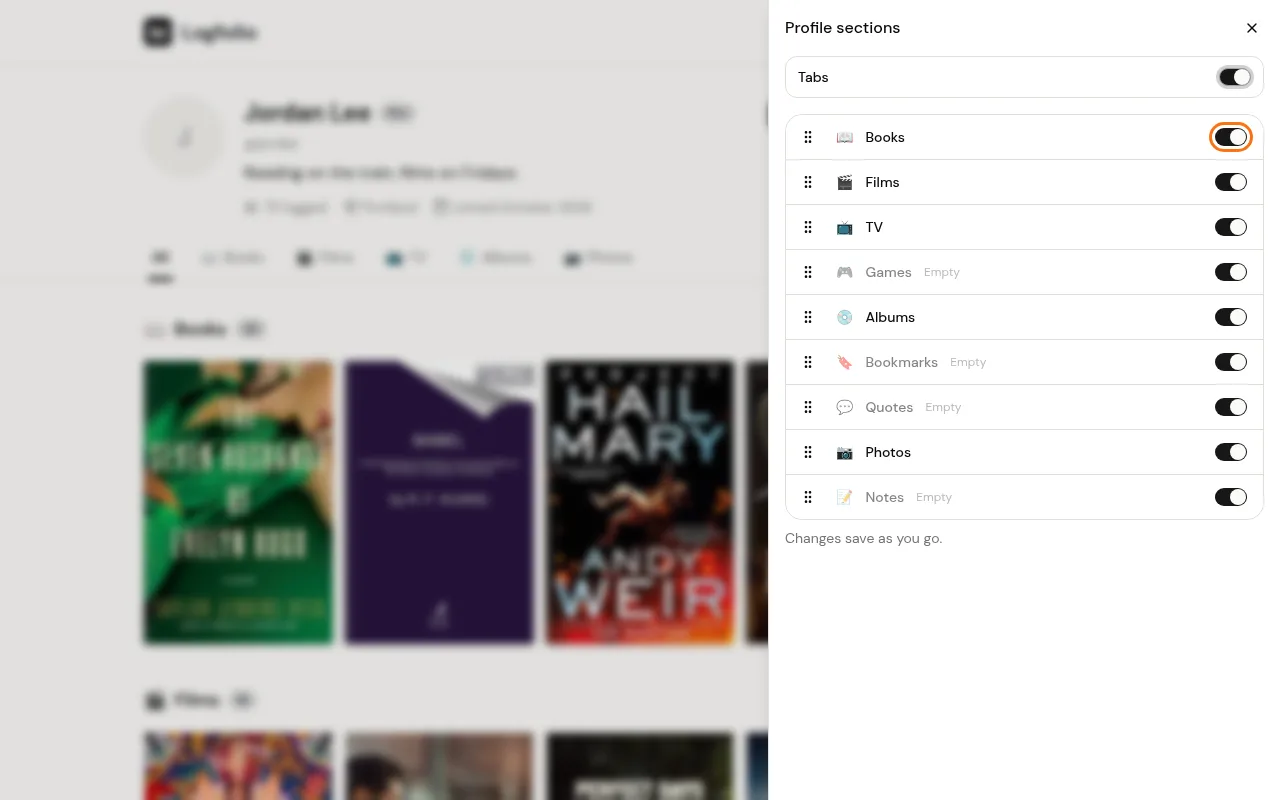
Turn off the switch beside a section to hide it from your page. Turn it back on to show it again. Changes save as you go, and you'll see Saved. under the list.
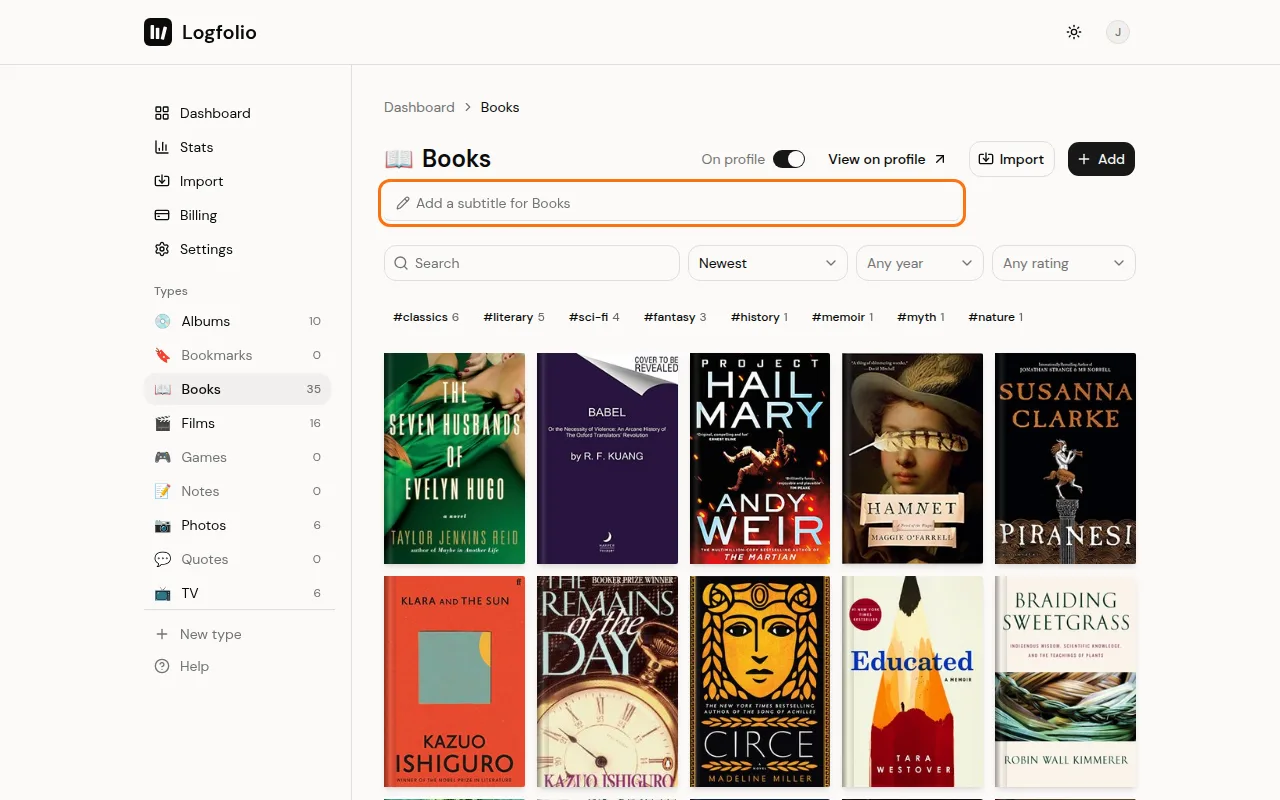
To add a line under a section, open that type on your log and type in the box under its title (it says Add a subtitle for Books, for example). Press Enter or click away to save it.
Good to know
- On Free, the Profile sections panel shows the Tabs switch and an upgrade card instead of the list.
- You can open the same panel from Settings with Arrange profile.
- Each type's log page also has an On profile switch. It does the same thing as the switch in the panel.
- A hidden section leaves your profile, its tab, its own page, and your website card. Everything in it stays on your log.
- A section marked Empty has nothing public in it yet, so it won't show until it does.
- Types you make later go to the end of your order.
- With tabs off, your section pages show a short trail of links at the top instead of your profile header.
- Subtitles can be up to 80 characters. Clear the box to remove one. The line shows under the section on your profile and on that section's own page.
- If your Pro ends, your page goes back to the standard order and hidden sections show again. Your choices are kept for when you upgrade again.