Besides books, films, and the other built-in types, you can make your own for recipes, places, projects, or anything else. Custom types are part of Pro. On Free, New type shows an upgrade card instead.
Steps
From your Dashboard, select New type under your list of types. On your profile, you'll also find it at the bottom of the Add new menu.

Pick an icon and type a name. Or select a template under Start from, like Recipes or Places, to fill in everything for you. You can still change it all.

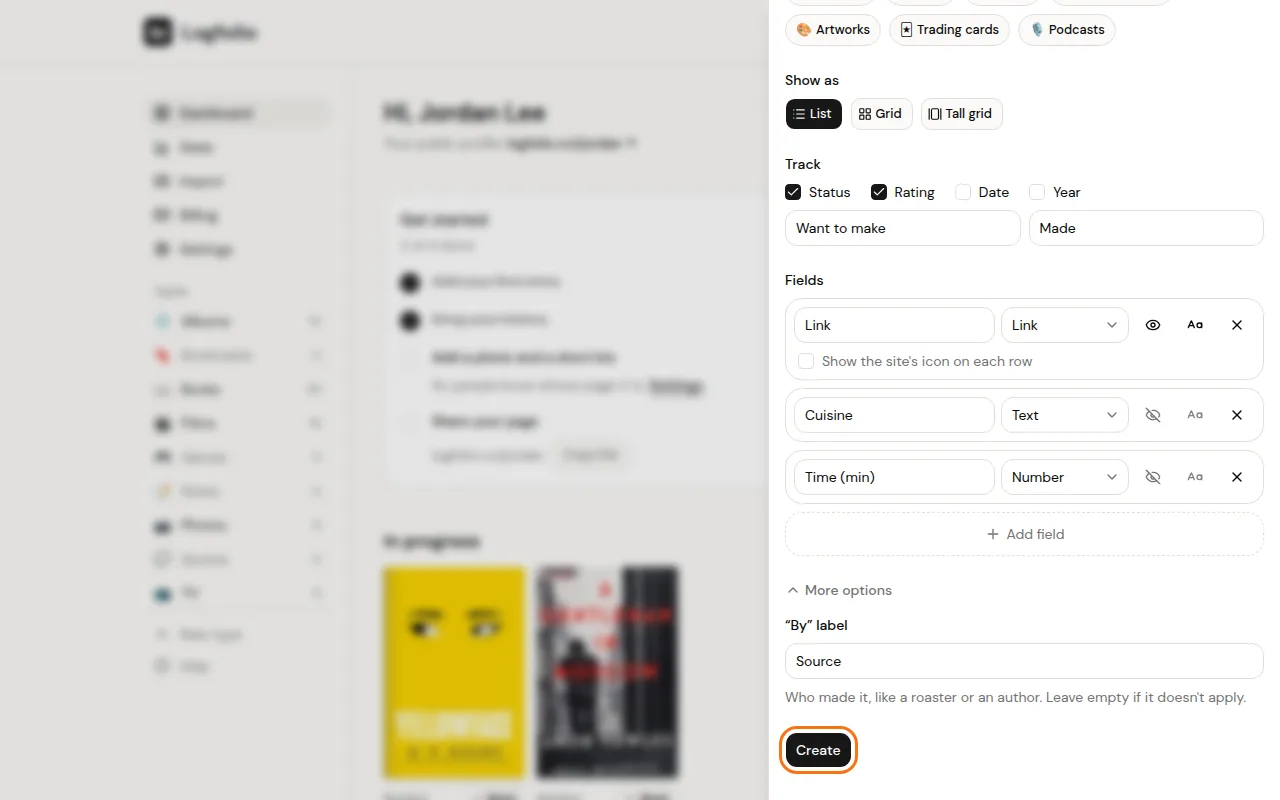
Under Show as, pick List, Grid, or Tall grid. Grids show each entry as a tile, using an Image field as the cover.

Under Track, tick what each entry should have: Status, Rating, Date, or Year. With Status on, you can name its two steps, like "Want to go" and "Been".

Under Fields, select Add field, name it, and pick its kind: Text, Long text, Number, Rating, Date, Pick one, Tags, Link, or Image. Select the eye button to show that field on your profile.

Select Create. Your new type opens, ready for its first entry.
Good to know
- New fields start as only for you. Turn on the eye button for each one you want visitors to see.
- The button next to the eye picks whether your profile shows the field's label or only its value.
- A Pick one field needs its choices typed in, separated by commas. A Link field can show the site's icon on each row.
- Each type can have up to 12 fields, and you can make up to 50 types of your own.
- More options has a "By" label, for who made something, like an author.
- Images in Image fields count toward your 500 image limit, shared with Photos.
- To change a type later, open it and select the settings button next to its title, then Save changes. Delete type removes the type and every entry in it.
- You can also browse templates with a sample entry on the templates page and select Use this template.
- If your Pro ends, your types turn read-only and leave your public page. Nothing is deleted.