Your profile card shows your name and a row of covers from each section you pick, and it goes on your site with one line of code. It's free on every plan. Pro can also hide the "Powered by Logfolio" line.
Steps
Go to Settings and open the Embed tab.
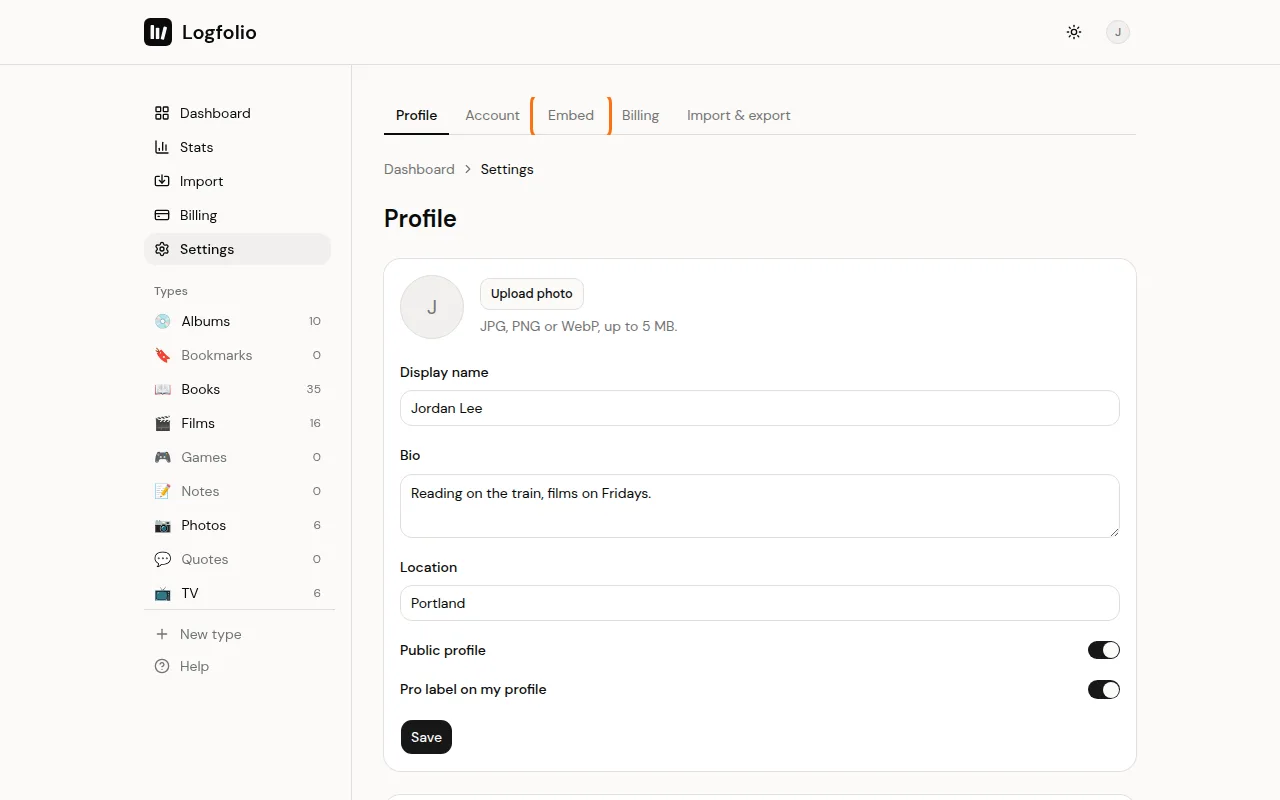
Make sure Enable card is on. With it off, other websites can't show your card.
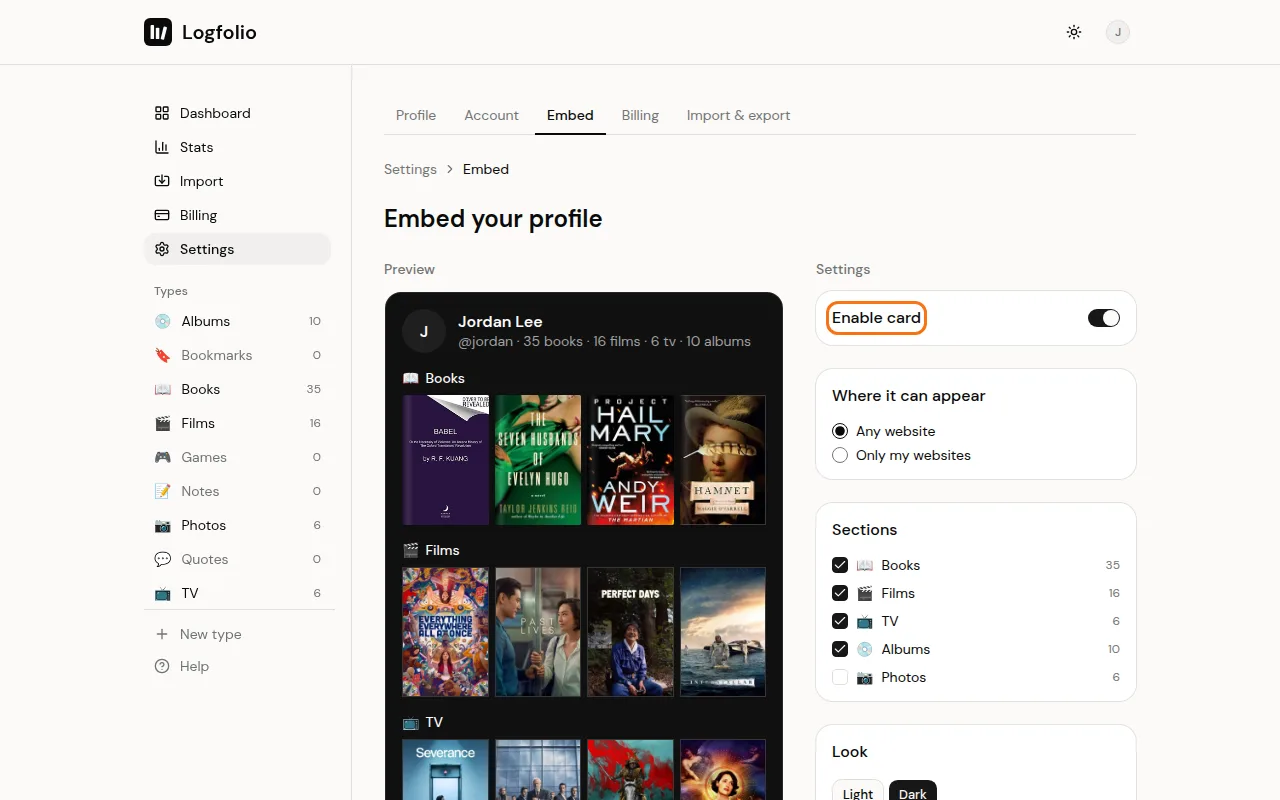
Under Where it can appear, choose Any website or Only my websites. For your own sites, type each address, like example.com, and select Add.
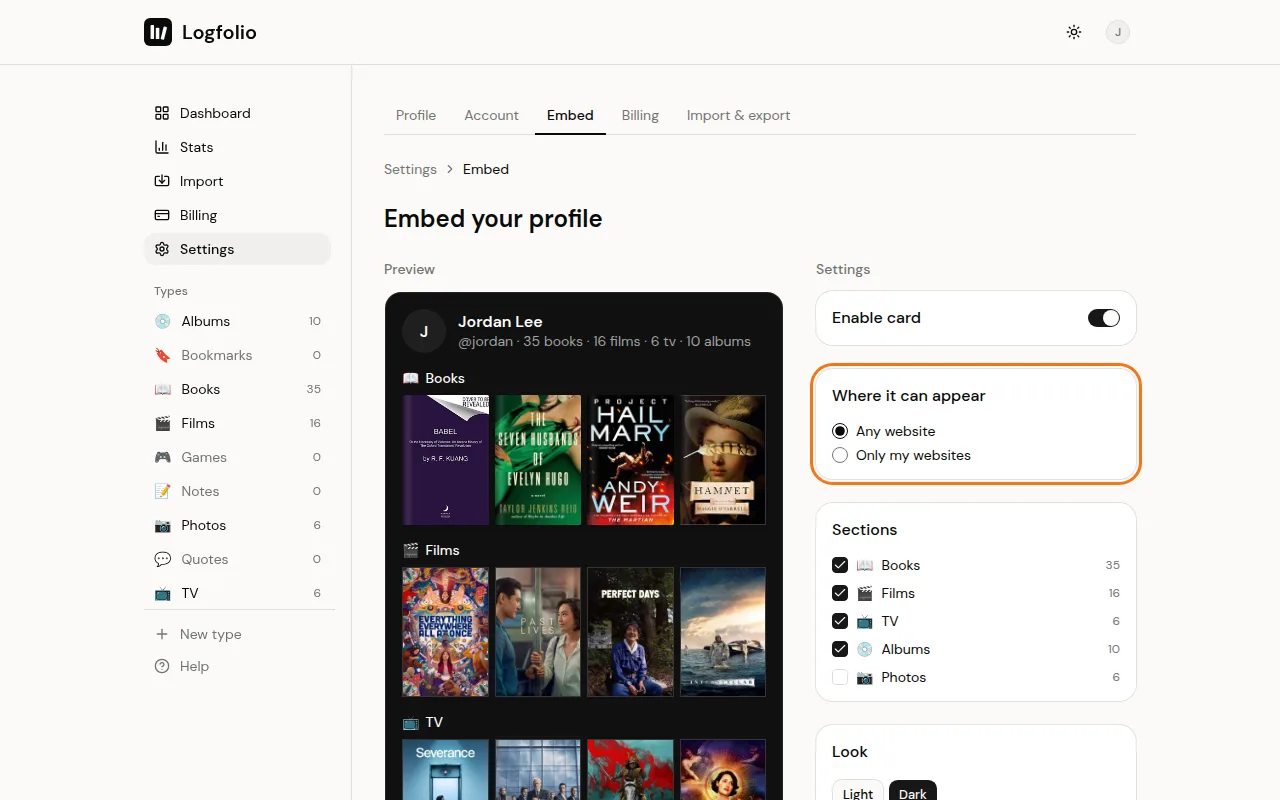
Under Sections, tick the sections you want on the card. The preview updates after each change.
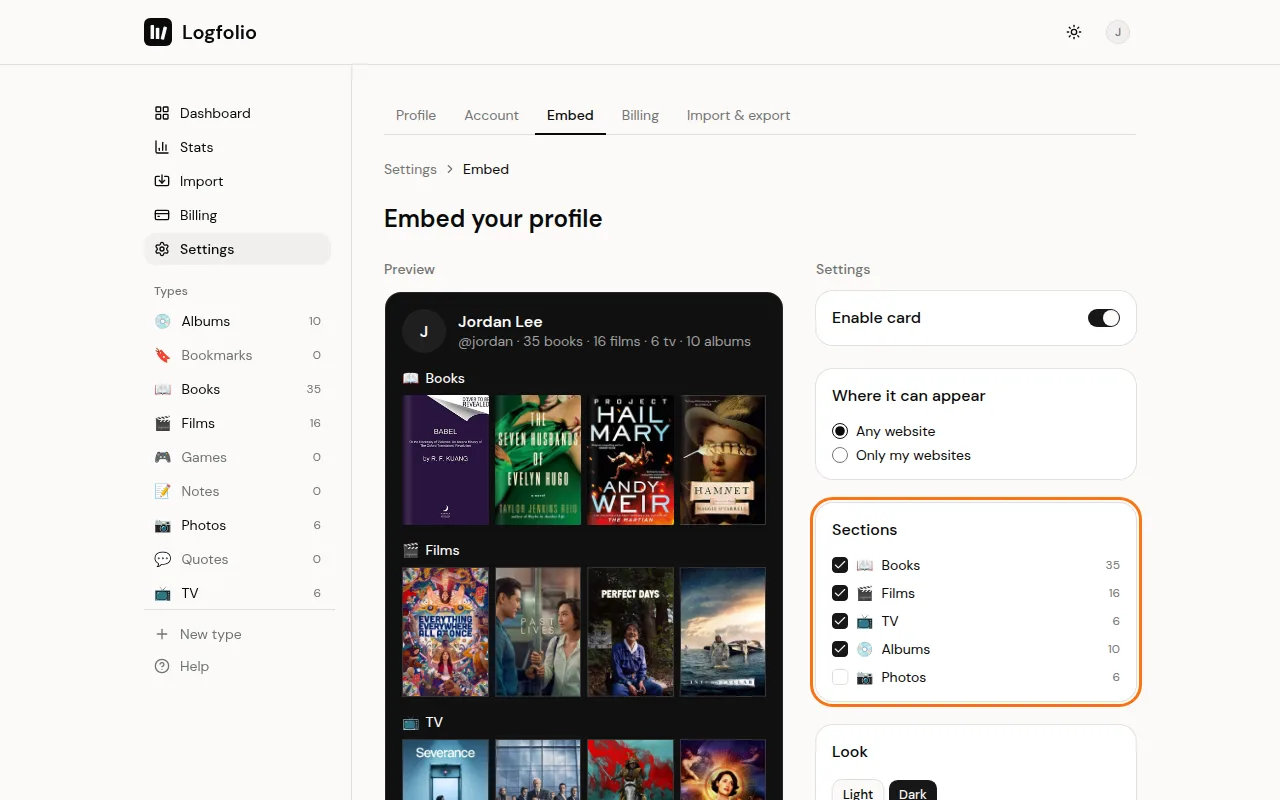
Under Look, pick Light or Dark. With Pro, you can also turn on Hide “Powered by Logfolio”.
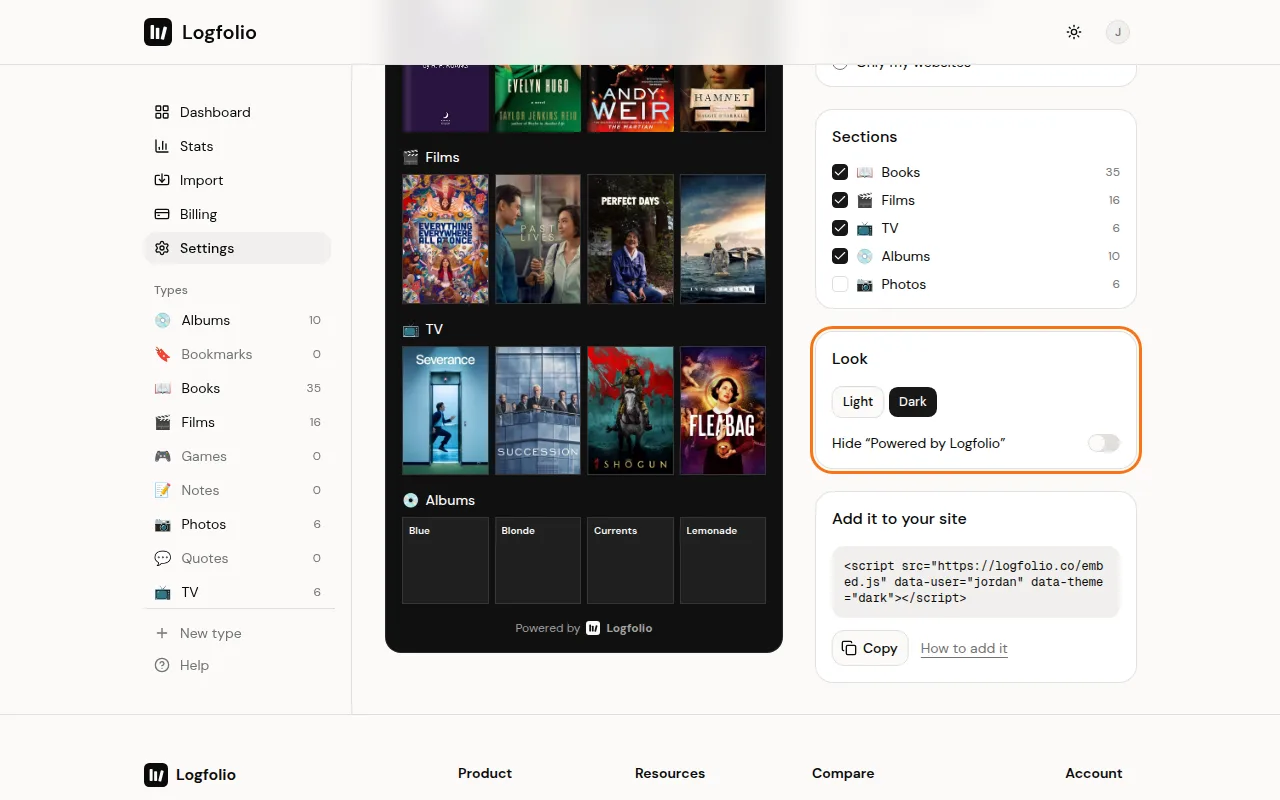
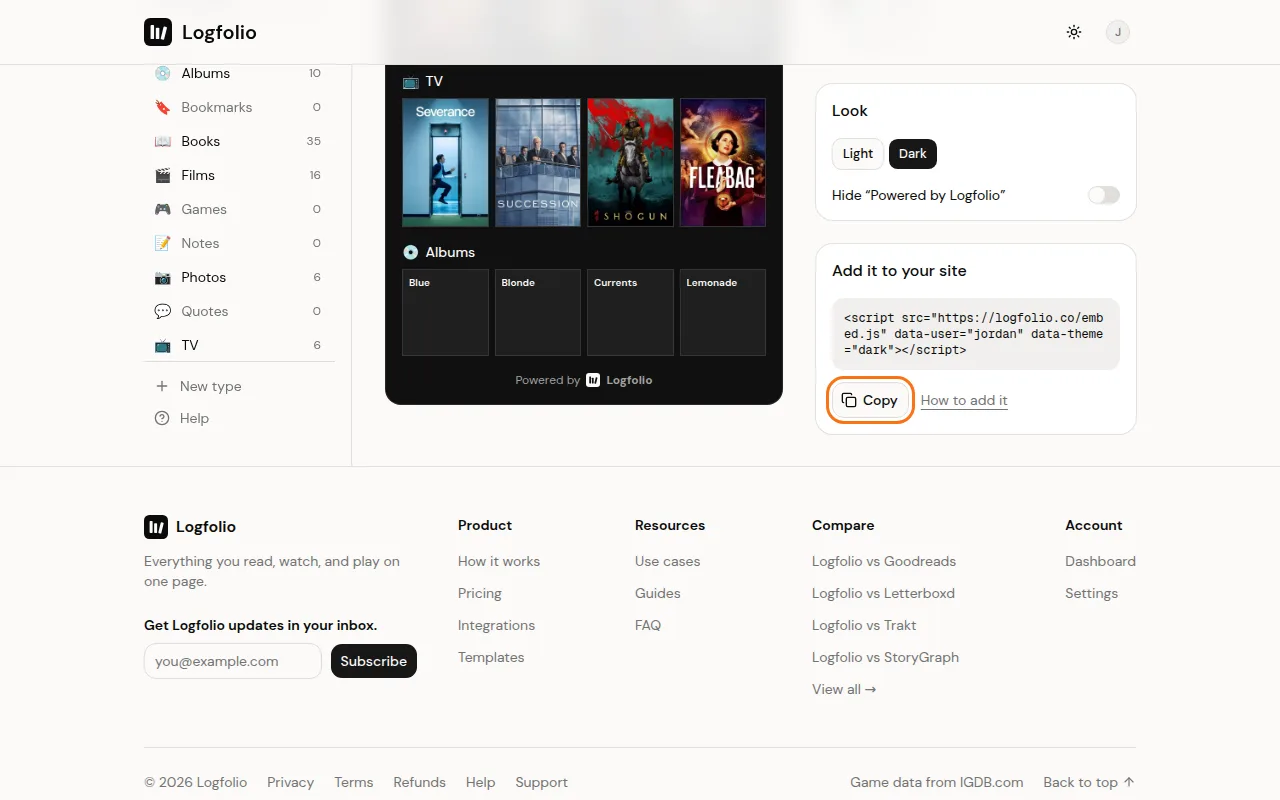
Under Add it to your site, select Copy. Paste the line into your site's HTML where you want the card to show.
Good to know
- Only sections shown as covers or photos can go on the card: books, films, TV, games, albums, photos, and your own types set to Grid or Tall grid.
- Until you change it, the card shows your first four of those sections. At least one has to stay ticked. Each section shows up to five covers.
- The theme is part of the copied line. If you remove the
data-themepart, the card follows each visitor's light or dark setting. - With Only my websites, you can add up to 10 addresses. Each one covers its subdomains too, like www or blog.
- Private entries and hidden sections stay off the card, the same as on your page.
- If your profile is private, the card has nothing to show. Settings will ask you to make it public first.
- Visitors' browsers can keep a copy of your card for up to 5 minutes, so changes may take a moment to show on your site.
- For which sites accept the line and how fast changes show, read the full guide.