Notes are for anything that isn't a book, film, or album, like a list, a thought, or a short post. Every note starts out private. With Pro you can publish a note, and it shows on your page for anyone to read.
Steps
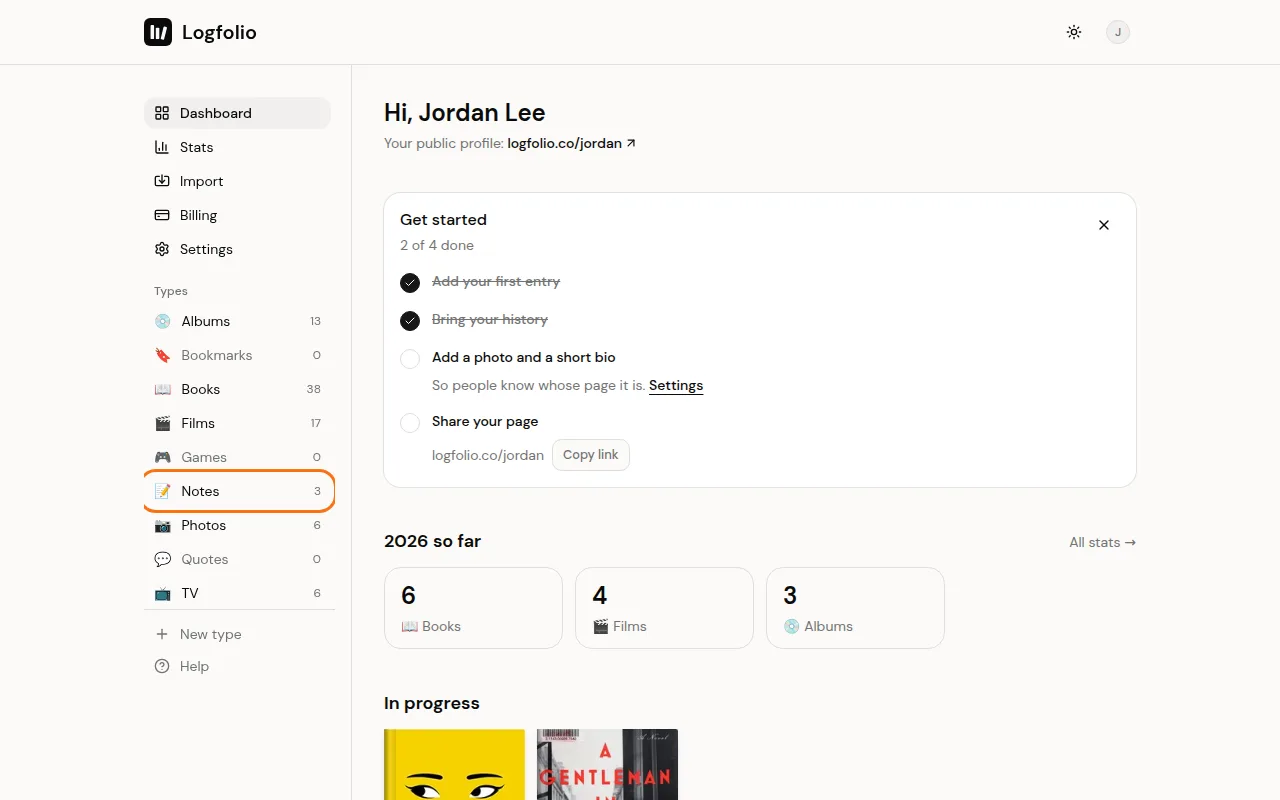
From your Dashboard, open Notes in the Types list.
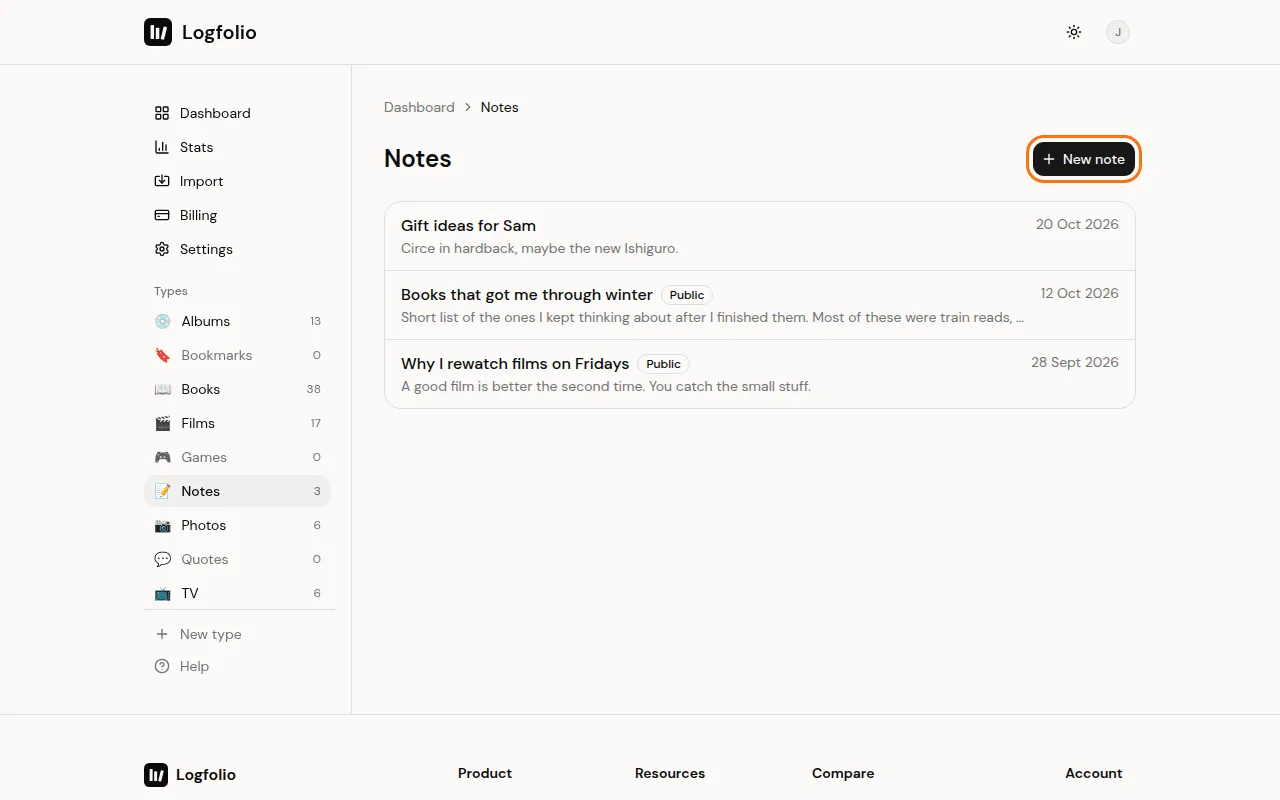
Select New note.
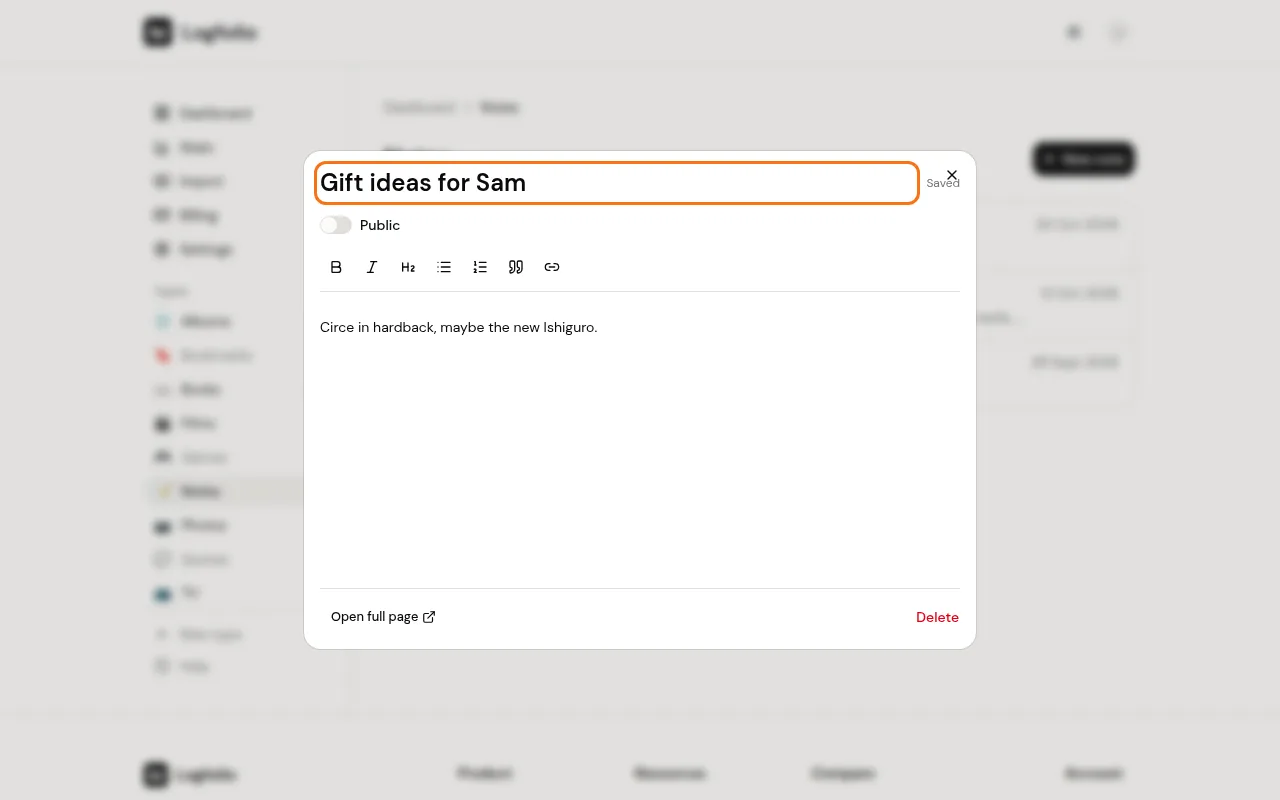
Type a title, then start writing below it. The toolbar does bold, italic, headings, lists, quotes, and links. Your note saves as you type, and you'll see Saved next to the title.
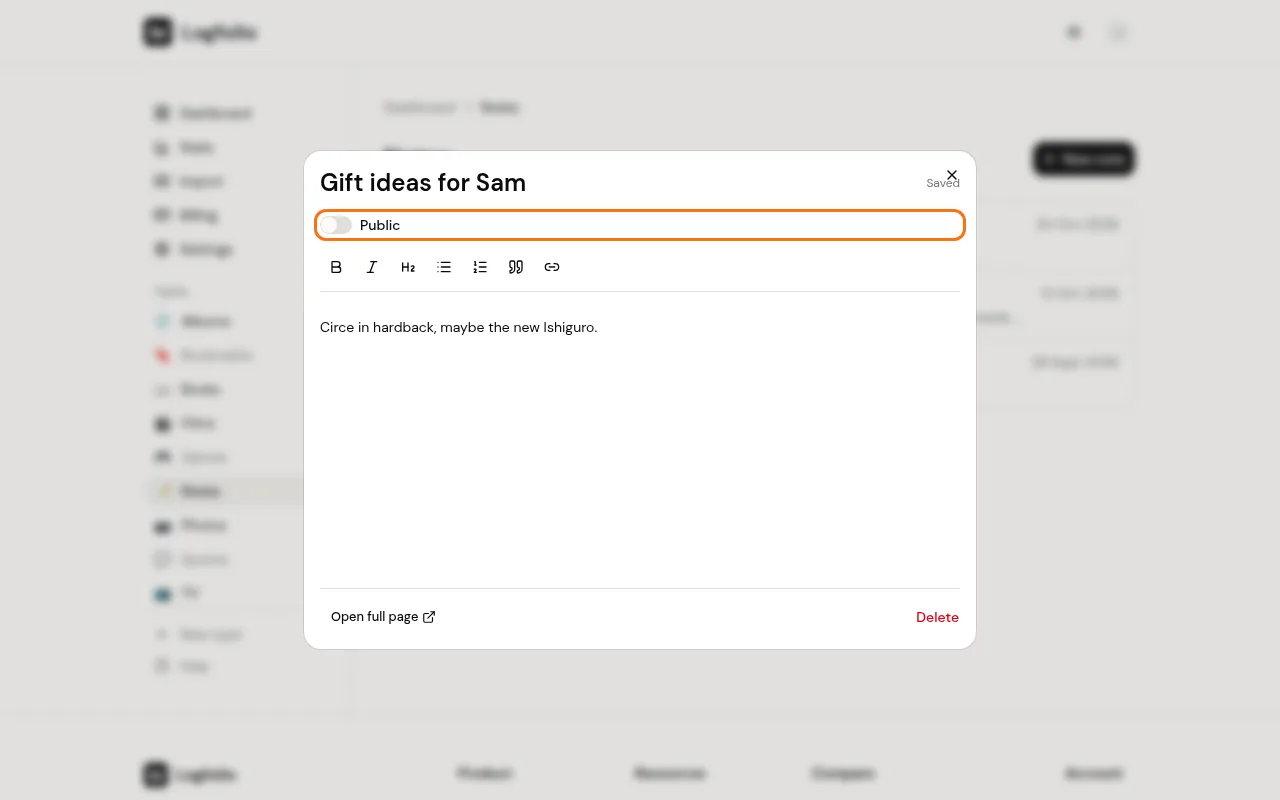
To publish it, turn on Public. Turn it off again to take the note off your page.
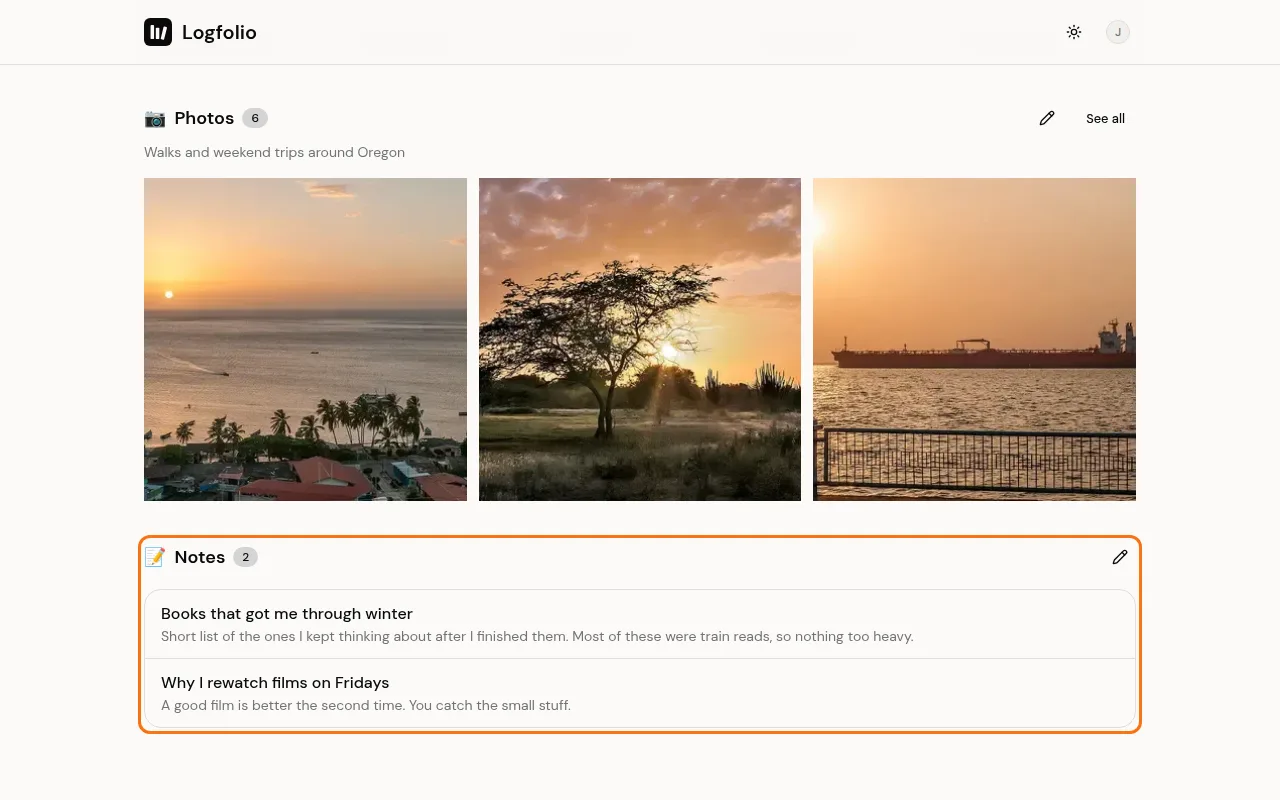
Your public notes show in a Notes section on your page, with the one you edited last at the top. Visitors can open each one to read it in full.
Good to know
- On Free you can write up to 20 notes, and they stay private. Pro gives you as many as you like, and lets you publish them.
- Your page shows the five public notes you edited most recently. When you have more, See all opens a page with every one of them, at /yourname/notes.
- If you have tabs turned on, your page also gets a Notes tab. See Arrange your sections to move or hide the Notes section.
- In your list, published notes have a Public label.
- To delete a note, open it and select Delete, then Delete again to confirm. This can't be undone.
- Opening a note from the list shows it in a popup. Select Open full page for more room.
- If your Pro ends, your notes stay, but public ones leave your page. You can still edit them and turn Public off. If you have 20 or more, you can't start new ones until you upgrade again.
- While your whole profile is private, nobody else can see your notes either. See Keep things private.